
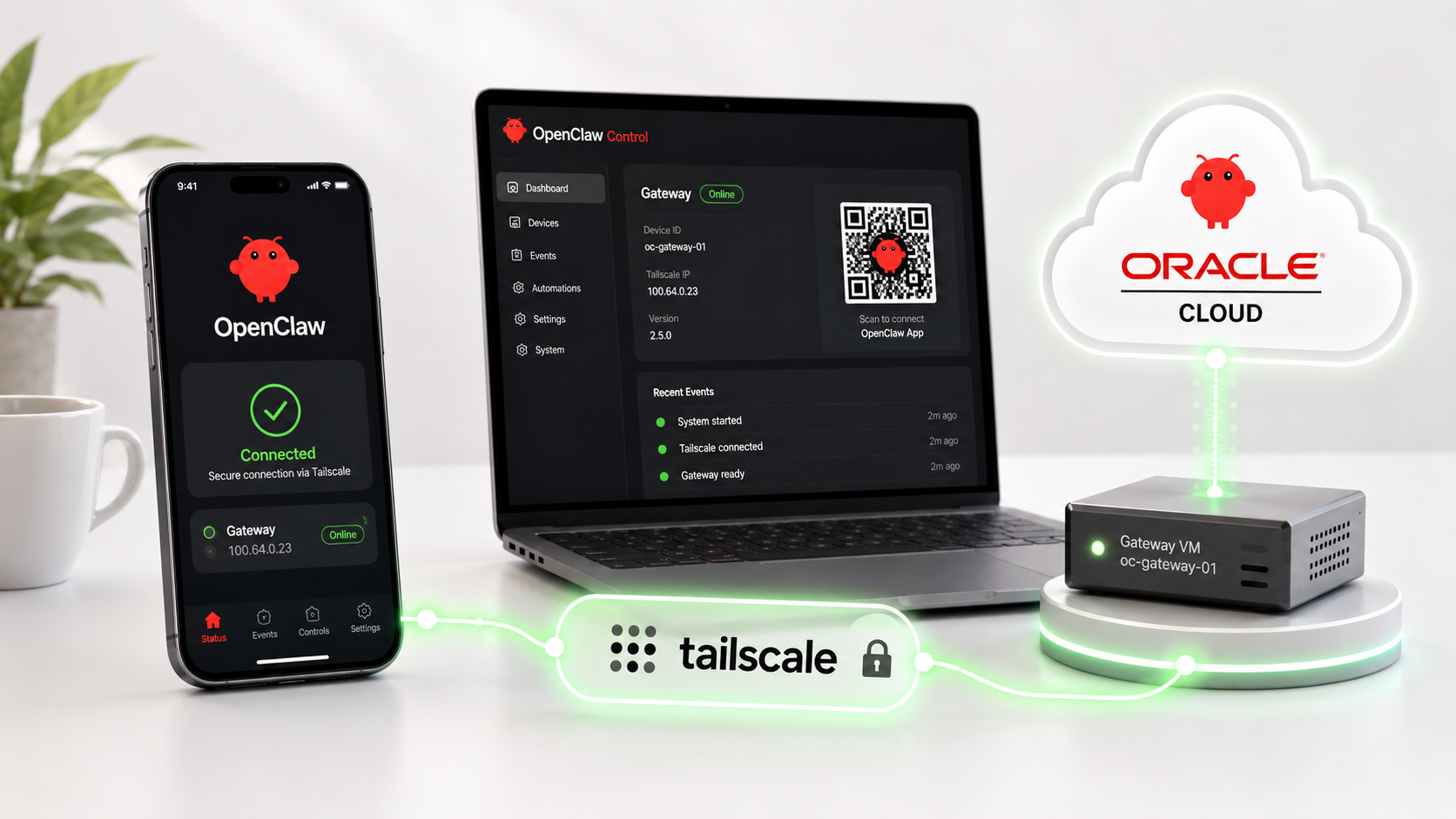
Some things you don’t fully let go of, even after you’ve deleted them. Months ago I removed OpenClaw, the project that had half of tech Twitter losing its mind at one point, and moved on to another AI assistant, Hermes. Then a post on X sent me right back to installing OpenClaw again. This time, with a difference.
The Screenshot That Started It
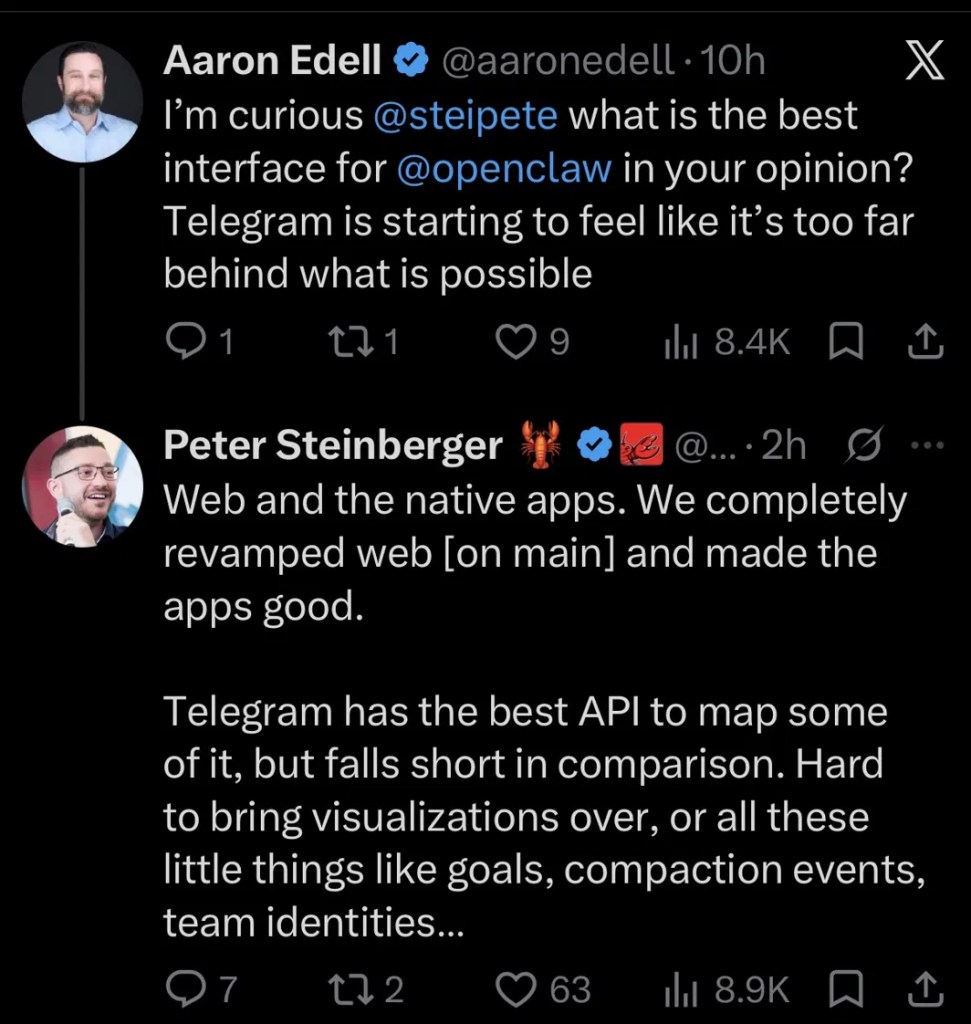
Someone named Aaron Edell asked Peter Steinberger, OpenClaw’s creator, what the best interface for the assistant is these days, since Telegram was starting to feel behind what OpenClaw can actually do. Steinberger’s answer was short. Web and the native apps. They had rebuilt web from the ground up and made the apps genuinely good.
I read that and thought about my own unfinished OpenClaw mobile app setup. Back in June when the app first launched, I downloaded it within the hour, then had nothing to connect it to, since I’d deleted my instance weeks earlier. That gap sat open for two months.
How I Installed OpenClaw’s iOS App and Connected It to the Gateway Using Tailscale
Step One: Downloading the Openclaw iOS App
The iOS app itself needed nothing new. It had been installed on my iPhone since June, waiting. Every OpenClaw mobile app setup starts the same way on the phone side, download it, open it, and it asks for a Gateway to connect to. Mine had nothing to point at, until now.
Step Two: Getting OpenClaw Running on the Server Again
I had a spare place to put it. A free Oracle Cloud VM I’d set up in May specifically for this kind of experimentation, running Oracle Linux, sitting mostly idle since. I connected to it the way you connect to any remote Linux server, over SSH from a terminal window on my Mac, which drops you into a command line running on the VM itself, not the Mac.
From that point, everything in this section happened on the VM, typed into that terminal.
Node wasn’t installed, so that came first, through a tool called nvm rather than the system package manager, to avoid stale versions:
nvm install 22nvm use 22
Then the actual OpenClaw install, one command:
curl -fsSL https://openclaw.ai/install.sh | bash

The onboarding wizard names your agent instance automatically. It asked permission before touching anything, then picked up a model provider once I gave it credentials. Within a couple minutes it reported the Gateway running, but only locally, at ws://127.0.0.1:18789.
That address, 127.0.0.1, is a special one worth understanding. It always means “this exact computer, and nowhere else.” Type it on any machine and it points right back at itself, the same way saying “here” only makes sense while you’re standing in one specific spot. So when OpenClaw reported itself alive at that address, what it actually meant was: I’m running and working, but only this VM can talk to me. My phone, sitting on a completely different network, had no way to reach that address, no matter how strong the WiFi signal was.
Step Three: Realizing the Phone Couldn’t See It
This is what people mean when they say a server is “bound to loopback.” In plain terms, the VM could talk to itself just fine, but nothing outside it, not my Mac, not my phone, could get a message through. If I wanted the app on my phone to reach that Gateway from anywhere, not just sitting next to the VM, I needed a way to open a secure path to it. Just exposing that address straight to the public internet was not an option either, since that leaves the door open to anyone, not just my own devices.
Step Four: The Three Devices, and Why Each One Needed Tailscale
Before going further, it helps to name the three devices actually involved, since each played a different role. The VM is the Oracle Cloud Linux server, the actual computer running OpenClaw, reached over SSH from a terminal. My Mac, a MacBook Air, was only ever used to open a browser and look at OpenClaw’s web dashboard. My iPhone is the device I actually wanted talking to my assistant day to day, running the OpenClaw app.
The tool that connects all three privately, without exposing anything to the open internet, is Tailscale. It works by putting every device you approve onto its own private network, so they can find and talk to each other directly no matter where they physically are, but nobody outside that network can see them at all.
Here is why each device specifically needed it:
The VM needed Tailscale so it could be reached from outside itself at all, since as we just covered, it started out only reachable from its own loopback address.
My Mac needed Tailscale for one specific reason, to open OpenClaw’s web dashboard and generate the QR code my phone would scan to pair. The private web address Tailscale creates, something like https://[your-vm-name].[your-tailnet-name].ts.net, only resolves for devices that are themselves logged into that same Tailscale account. Without Tailscale running on the Mac, that address would not load at all, it would look like a broken link. Worth knowing though, the Mac’s role here was strictly one time setup. Once the phone was actually paired, the Mac had nothing further to do with the connection.
My iPhone needed Tailscale so the OpenClaw app could reach the Gateway directly, from anywhere, including cellular data, not just while sitting on the same WiFi as the VM.
Installing it was the same basic process on all three, download the Tailscale app, sign in with the same account on every device. The one thing that tripped me up: I assumed logging into Tailscale’s website once would cover everything. It does not. Each device, the VM, the Mac, and the iPhone, needs its own separate login, done individually.
On the VM, in the SSH terminal:
sudo tailscale up
This printed a login link I had to open in a browser and approve before the VM actually showed up as connected. Only once tailscale status, also run on the VM, showed all three devices listed did anything downstream start working.
Step Five: Exposing the Gateway Properly
With all three devices on the same private network, one more command, run on the VM, made the Gateway reachable over a real web address instead of just loopback:
tailscale serve --bg 18789
Still on the VM, tailscale serve status handed back that address in the form https://[your-vm-name].[your-tailnet-name].ts.net, proxying straight through to the Gateway running on port 18789. That address became the thing both the Mac’s browser and, eventually, the iPhone app would use.
Step Six: Authenticating, and Where It Kept Breaking
On the Mac, opening that address in a browser landed on OpenClaw’s Control UI, its web dashboard, asking for a Gateway Token, essentially a password proving I was allowed to connect. First attempt, blank token, “Could not connect.”
Getting the real token wasn’t obvious either. Back on the VM, in the same SSH terminal, echo $OPENCLAW_GATEWAY_TOKEN came back empty, meaning it hadn’t been saved as a shortcut variable. Still on the VM, openclaw config get gateway.auth.token returned it, but redacted, by design, since that particular command is meant for checking that your settings are valid, not for displaying secrets. The actual value only appeared by reading OpenClaw’s configuration file directly off the VM’s disk.
What I pasted into the Mac’s browser was a real generated token from my own setup. If you’re following along, yours will look similar, a long random string OpenClaw generates for you automatically. It’s not something to copy from someone else’s writeup, it has to come from your own Gateway.
Token accepted in the browser, new error: “Device pairing required.” OpenClaw needs a one time approval for any device connecting from outside the Gateway’s own machine, a deliberate security step rather than a bug, so a stranger’s browser can’t just attach itself to your assistant. The error gave a request ID to approve, which I ran back on the VM:
openclaw devices approve [request-id]
The first ID I tried had already expired, replaced by a newer pairing attempt the moment I clicked Connect again in the Mac’s browser. Running openclaw devices list, also on the VM, showed the current live one, and approving that worked. The Mac’s browser connected.
Step Seven: Pairing the Phone Itself
Last wall. In the Mac’s browser, inside the now connected Control UI, Settings, Devices, Pair Device, and instead of a QR code: “GatewayRequestError: Gateway is only bound to loopback.” The piece of OpenClaw responsible for generating pairing codes had no idea the Tailscale address existed, it only knew about that original loopback address. One fix, run on the VM:
openclaw config set plugins.entries.device-pair.config.publicUrl "https://[your-tailscale-url]"openclaw gateway restart
Back on the Mac, reloading the page produced an actual QR code this time. On the iPhone, opening the OpenClaw app and scanning that code from the Mac’s screen, connected, for real.
The Simpler Path I Found After the Fact
Worth admitting. OpenClaw’s own docs recommend starting the Gateway with Tailscale built in from the very first command:
openclaw gateway --port 18789 --tailscale serve
One line, done at the start, instead of onboarding first, hitting loopback, then bolting Tailscale on as a separate fix afterward.
Follow What I’m Building With AI
A practical dispatch on the AI news worth knowing, the tools I’m testing, and the real lessons from projects I’m building in public. Plus occasional interactive workshops when there’s something worth exploring together.
Free to join. Unsubscribe anytime.
FAQ
How do I connect the OpenClaw mobile app to a remote server? Your phone and Gateway need to be reachable from each other, which usually means Tailscale if the server isn’t on your home network. Install it on both the server and the phone, log both into the same account, expose the Gateway through Tailscale Serve, then generate a pairing QR code from the Control UI’s Devices settings.
Why does OpenClaw say pairing is required when I try to connect? Local connections on the same machine get approved automatically, but any new browser or device connecting remotely needs a one time approval, a deliberate security step rather than a fault. Run openclaw devices list on the Gateway to find the pending request and approve it by ID before retrying.
Is Tailscale necessary to use OpenClaw’s iPhone app? Not if your phone and Gateway share the same WiFi network, the app can often find it directly. It becomes necessary the moment your Gateway lives somewhere else, like a cloud VM, and you want to reach it from anywhere, including cellular.
Takeaway
The app connected. The loop that opened back in June, downloaded and useless, is finally closed. Whether the thing underneath it, the actual stability and memory that pushed me toward Hermes in the first place, has genuinely improved is a separate question I’m not answering off one successful pairing.



Leave a Reply