
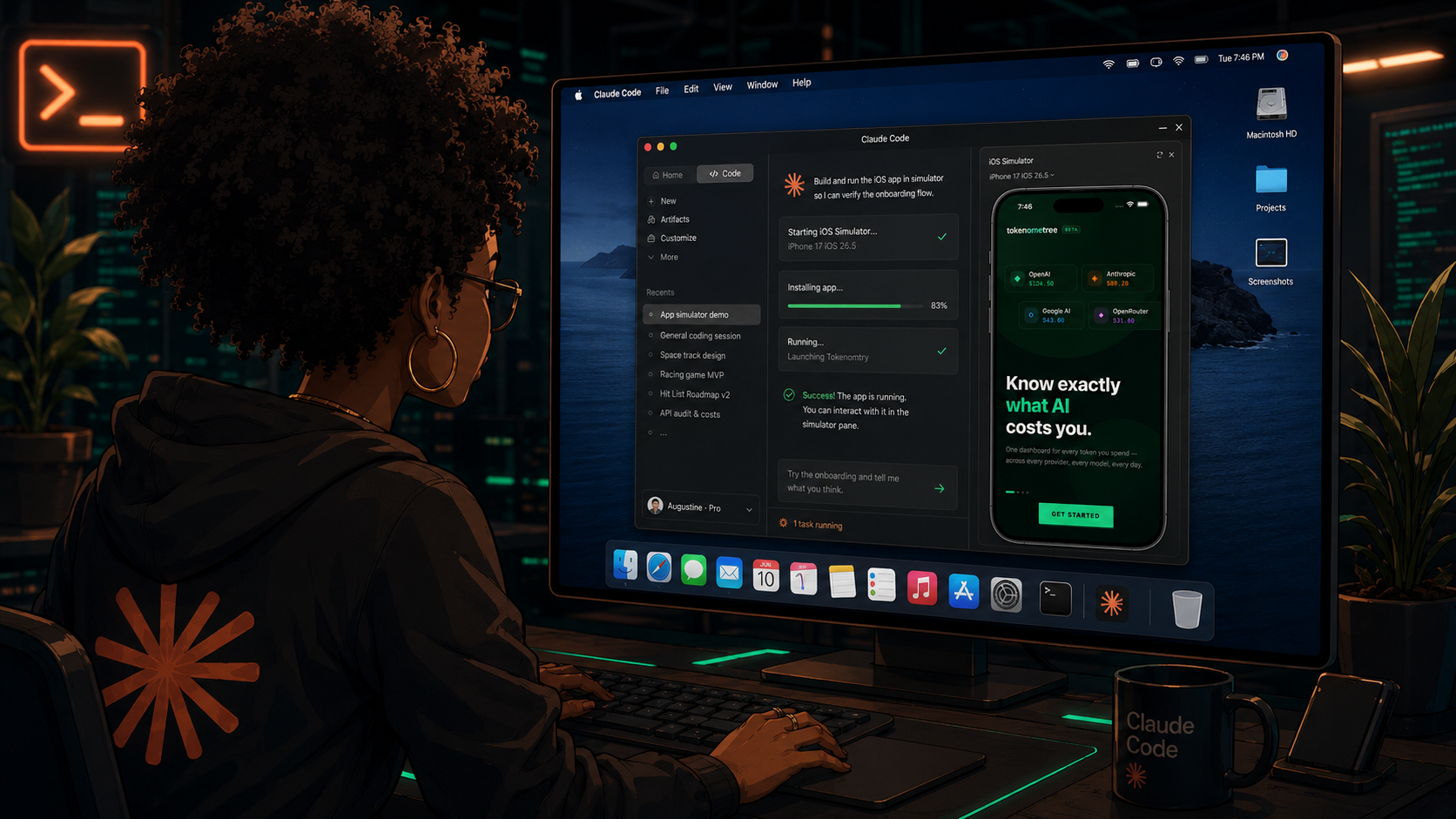
Claude Code’s new iOS Simulator pane shipped this week inside Claude Code Desktop, and I had it running against my own app within the hour of seeing the announcement. It’s a public beta, macOS only for now, and it changes something small but real about how AI coding tools verify their own work.
Why it matters
Most AI coding assistants write code, tell you it should work, and move on. You’re the one who opens the app and finds out if that’s true. This feature closes that gap for iOS. Claude now builds your app, installs it on a simulator, taps through the screens, and reads what’s actually on screen before telling you something is fixed. You watch it happen live in a pane sitting right next to the chat, instead of taking that claim on faith.
How it actually works

You don’t need a special command. Open your iOS project as a session in Claude Code Desktop and ask Claude to run or check something, for example “run the app and check the onboarding flow.” The pane opens automatically once Claude launches your app in a simulator.

The permission model is worth knowing before you try it. The first time Claude touches a specific simulator device, the app interrupts and asks you to allow it. That consent covers Claude tapping, typing, launching the app, and taking screenshots of that device, and you only give it once per device, not once per session. Screenshots go to Anthropic and follow your normal conversation retention settings, so it’s worth not signing into real accounts on a device Claude is using.
One detail that matters more than it sounds: the pane drives the simulator directly rather than taking control of your actual screen. That’s different from how Claude Code’s CLI version handles this, which uses screen control instead and needs macOS Accessibility and Screen Recording permissions to click around like a mouse would. The desktop pane skips all of that. It also supports up to four simulators per session, and each parallel session gets its own device, so nothing bleeds into another project.
The catch if you’re building with Expo or React Native
This is the part I’d have gotten wrong without testing it myself. If you’re used to npx expo start and previewing your app in the Expo Go app, that workflow won’t trigger the pane. Expo Go is a pre-built container app that Metro pushes your code into over the network. No Xcode build happens, so there’s nothing for Claude’s simulator tooling to hook into.
What does work is npx expo run:ios. That command generates a real native iOS project if you don’t already have one, compiles it with Xcode’s own build tools, and installs it on the simulator the same way a fully native app would. That’s the exact path the pane is built on top of. If you’re on Expo and this doesn’t seem to be working, that’s usually why.
What it doesn’t do
Worth being direct about this since it’s an easy assumption to make. This is a testing tool, not a shipping tool. There’s nothing here for App Store Connect, TestFlight, or code signing. It gets your app running and verified on a simulator, and that’s where it stops. You’re still doing the actual release yourself.
It’s also iOS only, and that’s not a minor omission. Xcode simply doesn’t exist for Windows or Linux, Apple only builds it for macOS, so the entire feature is locked to Mac users by definition. If you’re building cross platform and want the same kind of live verification on Android, that’s a separate emulator workflow with no equivalent here yet.
I tried it on an App I’m building

I pointed Claude Code at Tokenomtry, my own React Native app, and asked it to run the app with expo run:ios and show me the simulator. Claude opened the pane, asked for one permission prompt for the simulator device, and I allowed it. From there it ran CocoaPods, kicked off the Xcode build in the background, and kept me posted on progress while it compiled. A few minutes later the simulator was sitting there showing a live home screen, no extra setup on my end beyond Xcode I already had installed from an earlier project.
Nothing about that test was complicated. That’s actually the useful part. It didn’t require learning new tooling or writing config by hand, just a normal prompt and one approval click.
Do I need Xcode installed to use the Claude Code iOS Simulator?
Yes. The pane runs on top of Apple’s own simulator tooling, which only ships as part of Xcode. If you’ve never installed Xcode or built an iOS app before, Claude will walk you through getting the iOS platform set up the first time it can’t find a simulator.
Does the Claude Code iOS Simulator work on Windows?
No. Xcode is macOS only, so the pane doesn’t exist on Windows or Linux at all. There’s no workaround for this since it’s an Apple restriction, not a Claude Code limitation.
Can Claude Code submit my app to the App Store?
No. This feature covers building and testing your app inside a simulator only. Submission, signing, and TestFlight distribution are still entirely manual steps you handle yourself.
If you’re building anything for iOS with Claude Code, this is one of those small features that ends up saving more time than the announcement suggests. Worth trying against your own project before you take my word for it.




Leave a Reply